Waterfall PM Documentation
Everything you need to plan, schedule, and track your projects.
Quick Start
- 1
Create a project
Click New Project on the projects page. Enter a name, pick a start date, and optionally configure work days and timezone in Project Settings. Every task date flows from this start date.
- 2
Build your Work Breakdown Structure
Open the WBS tab. Click + to add tasks. Press Tab to indent a task under a phase. Drag rows to reorder. Phases collect and display the rolled-up dates of their children — you do not edit phase dates directly.
- 3
Set dependencies
Shift-click two or more tasks to select them, then press L to link them with a Finish-Start dependency. The Gantt chart auto-schedules everything. Press U to unlink selected tasks.
- 4
Add resources
Go to the Resources tab and add team members by name and email. Then open a task card and assign resources with an allocation percentage (default 100%).
- 5
Track status
Drag tasks between columns on the Kanban Board, or click the status pill in the WBS table. Status drives date side-effects: marking a task In Progress locks its start date to today; Done closes it.
Work Breakdown Structure
The WBS is the primary view for editing your project plan. Tasks are arranged in a hierarchy: phases group work, and leaf tasks are the actual work items. A phase is any task that has at least one child task (that is not a subtask).
Phases roll up dates automatically — their start date is the earliest child start, their end date is the latest child end. You cannot edit phase dates or duration directly.
Subtasks are checklist items that only appear inside an undocked Task Card. They are hidden from the WBS, Gantt, and Board. Subtasks have no schedule — they are for tracking fine-grained work inside a task.
Editing cells
Single-click a row to select it, then click a cell to edit it inline. Press Tab to move to the next editable cell, Shift+Tab to go back,Enter to commit, and Esc to cancel.
Duration accepts unit suffixes: h (hours, ÷8 days), d (days), w (weeks ×5), m (months ×20). A bare number defaults to days.
Multi-select
Click a row to select it (single). Hold Shift and click to range-select. Hold Ctrl / ⌘ and click to toggle individual rows. Arrow keys move the lead selection; Shift+↑/↓ extends the range.
Filtering tasks
Filter in the toolbar narrows the WBS and the Gantt to tasks with chosen statuses, chosen resources, or both. Tick several statuses to see tasks in any of them. Ticking statuses and resources together shows only tasks that match both. Unassigned finds work nobody owns yet.
The phases above a matching task stay visible, so the structure still reads, and every row keeps its usual WBS number. A task you create while filtered stays visible until you change the filter. The selected task and the one open in the Task Card stay visible while they are selected or open, even if an edit takes them out of the filter. The filter is remembered for each project in this browser. While it is on, the button reads Filter · N. Clear filter shows everything again.
Editing works as usual while filtered and acts on the whole plan. Moving a task with Alt+↑/↓ or by dragging places it among all its siblings, including hidden ones.
Gantt Chart
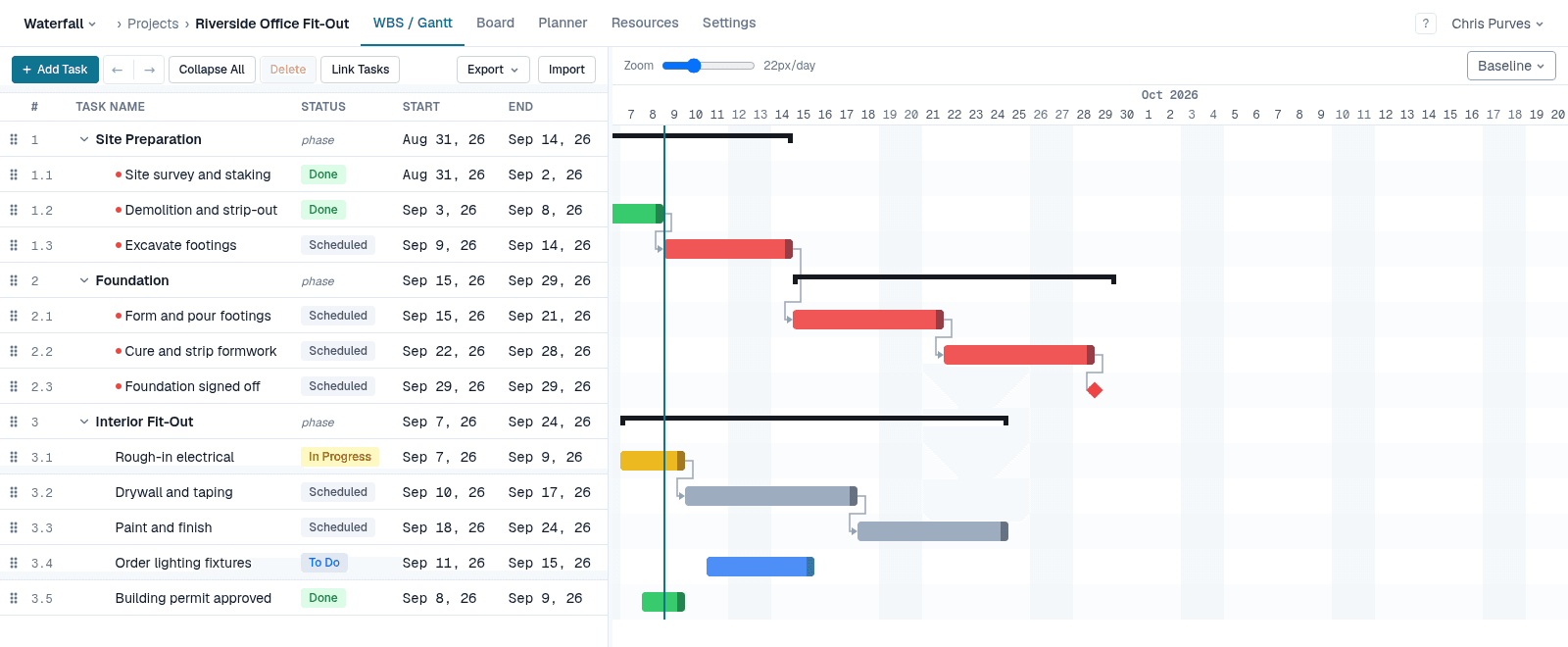
The Gantt chart is the right panel of the WBS/Gantt split view. It shows one bar per task, positioned by start and end date on a scrollable timeline. The row list stays in sync with the WBS — collapsing a phase hides its children from both panels simultaneously.
Reading the chart
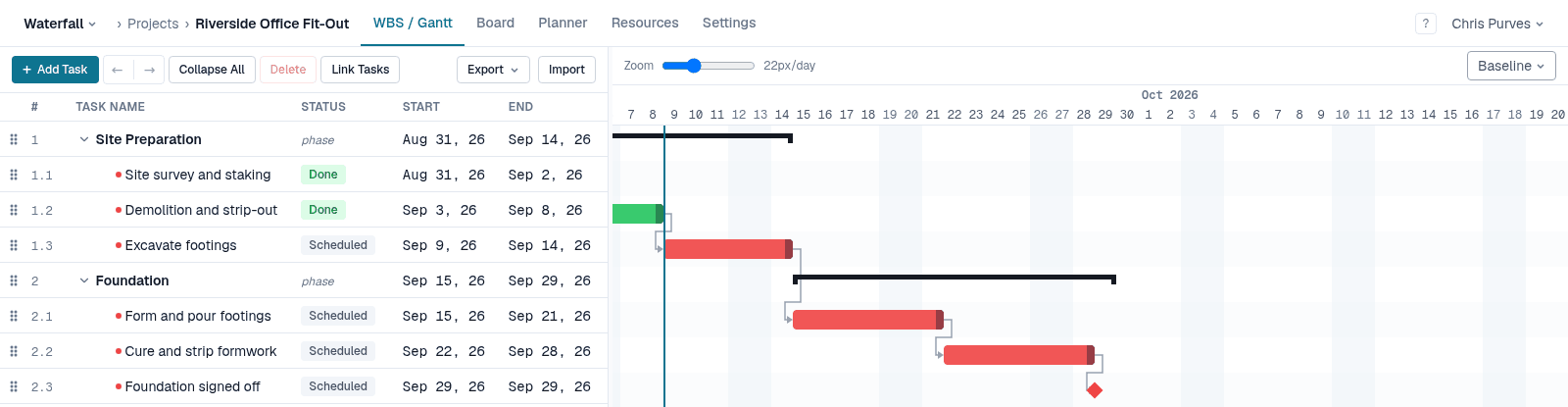
- Bar colour follows status — grey for Scheduled, blue for To Do, amber for In Progress, green for Done. The same four colours as the status chips beside them in the table.
- Red bars= the critical path (zero scheduling float — any delay to one moves the project end). Red replaces the status colour only for work that has not started; once a task is In Progress or Done it keeps its own colour, because “at risk” stops being the useful thing to say about work that is already underway or finished. A small red dot beside the task name marks the same thing in the table.
- Black bars = phases. A phase spans its children and is structural, not a status.
- The teal vertical lineis today, in the project’s timezone.
- Shaded columns = non-work days and holidays.
- Dashed arrows = non-Finish-Start dependencies (SS, FF, SF). Solid arrows = Finish-Start.
- A vertical linemarks a task’s deadline, at the end of that day. It turns amber when the plan will miss it.
- A triangle beside the task name flags a date the plan does not meet — red for a constraint it breaks, amber for a missed deadline. Hover it for the number of days.
Bar interactions
- Drag the left half of a bar to move the task. This constrains it to start no earlier than that date and changes nothing else. It does not touch the dependencies, and it does not edit the task’s stored start date. See Pinning a task.
- Shift + drag writes Must Start On instead — the task belongs on exactly that date. If the plan cannot honour it, the bar stays where its predecessors put it and the row is flagged.
- Alt + drag changes the lag on the link from the predecessor currently holding the task, rather than constraining the task at all. You need edit rights on both tasks; otherwise the drag is refused and says so. The same lag can be typed in the Predecessors column.
- Drag the right edge (8 px handle) to change the duration.
- From the keyboard: Tab to a bar, Space to pick it up, then ← / → to move it one day per press.
- Phases and milestones have no drag handles.
- Dragging started work (In Progress or Done) corrects when it actually happened: the move rewrites its start date rather than adding a constraint, and its successors follow. It cannot go past today: an In Progress task cannot start after today, and a Done task cannot finish after it. Shift and Alt do nothing extra here. Typing a Start, End or Duration on started work follows the same limits, and the project start as well, but a date outside them is refused with a message instead of being moved.
Pinning a Task
A constraint records where youwant a task, as opposed to where the scheduler would otherwise put it. Waterfall supports all eight of Microsoft Project's constraints. Set any of them from the task card's Schedule section; a bar drag writes one directly.
| Constraint | Code | Holds it no earlier | Flags it when later |
|---|---|---|---|
| As Soon As Possible | ASAP | — | — |
| As Late As Possible | ALAP | — | — |
| Start No Earlier Than | SNET | Yes | — |
| Start No Later Than | SNLT | — | Yes |
| Finish No Earlier Than | FNET | Yes | — |
| Finish No Later Than | FNLT | — | Yes |
| Must Start On | MSO | Yes | Yes |
| Must Finish On | MFO | Yes | Yes |
A floor is not a lock. A constraint that holds a task no earlier still lets a predecessor push it later. A ceiling never moves anything.If the plan cannot meet a “no later than” or “must” date, the task stays where its predecessors put it, the row shows a red marker with how many days it is over, and every task feeding it shows negative float — so you can see what has to move. Microsoft Project instead pulls the task earlier than its predecessors allow, which produces a plan nobody can carry out.
As Late As Possible places a task at the latest start that does not delay the project.
Dragging on the Gantt
- Drag — Start No Earlier Than the date you drop on.
- Shift + drag — Must Start On that date.
- Alt + drag — changes the lagon the link from the task's driving predecessor instead of constraining the task. You need edit rights on both tasks.
Deadlines
A deadline is not a constraint and never moves a task. It is the date the plan is measured against: the Gantt draws a line at it, the row shows an amber marker when the plan will miss it, and the tasks feeding it go to negative float by the size of the shortfall.
Behaviours worth knowing
- A floor cannot be earlier than the schedule allows — earlier than its predecessors finish, than the project starts, or than today. On the Gantt and the task card the date is moved forward to the earliest one that works; on the Team Planner, and for a Start date you type, the change is refused with a message giving the earliest date that works, and the task holding it there when one does. Ceilings are stored as you set them, since being unreachable is what they report.
- Typing a Start date pins the task, like a drag. On a task that has not started, it sets Start No Earlier Than at that date (or moves a Must Start On). If the task has a Start No Later Than or a finish constraint, clear that first — a Start date will not silently delete it. Editing End clears a finish constraint. A deadline is never cleared this way.
Dependencies
Dependencies are predecessor/successor links between tasks. When a predecessor is delayed, the scheduler automatically repositions all downstream successors.
Dependency types
| Type | Meaning | Arrow style |
|---|---|---|
| FS (Finish-Start) | Successor starts after predecessor ends | Solid |
| SS (Start-Start) | Successor starts after predecessor starts | Dashed |
| FF (Finish-Finish) | Successor ends after predecessor ends | Dashed |
| SF (Start-Finish) | Successor ends after predecessor starts | Dashed |
All types support a lag (positive = a gap between the tasks, negative = a lead, where they overlap). Set it by typing in the Predecessors column — 3FS+2d or 4SS-1d — in the lag field beside each predecessor on the task card, or by Alt-dragging a bar on the Gantt.
A lag counts on the successor's calendar, as in Microsoft Project: working days for most tasks, every day for a task set to work every day. For a wait that runs through weekends and holidays — concrete curing, say — add the wait as its own task set to work every day.
Creating and removing dependencies
- Select ≥ 2 tasks in the WBS and press L — creates a Finish-Start chain in selection order.
- Select tasks and press U — removes all dependencies between the selected set.
- Use the Link Tasks toolbar button for the same actions with mouse only.
- Type into the Predecessors column to set links, types and lag in one go:
1.2FS+3d, 4SS. A bare4means finish-start with no lag. The numbers are the WBS numbers in the first column. - Open a task card to change a link's type or lag.
- Only finish-start links move a successor between To Do and Scheduled when a predecessor finishes or reopens.
Scheduling Modes
Each task has a scheduling mode that determines what the fixed input is. Open a task card and use the dropdown in the Schedule section to switch.
| Mode | Fixed input | What changes automatically |
|---|---|---|
| Duration (TIME_BASED) | Duration in work days | Work hours (displayed only, no scheduling effect) |
| Work (WORK_BASED) | Work in hours | Duration recalculates when you add/remove resources or change allocations |
Use Work-based when the task effort is fixed and you want the calendar duration to compress as you add more people. For example, 40 hours of work with two 100% resources gives a 2.5-day duration instead of 5.
Status Transitions
Tasks move through four statuses. Not every transition is allowed — you can skip forward freely, but can only step backward one status at a time.
| From → To | Allowed? | What happens to the dates |
|---|---|---|
| Scheduled → To Do | ✓ | Status only; dates untouched |
| Scheduled → In Progress | ✓ | Start date set to today; end date slides to keep the duration |
| Scheduled → Done | ✓ | Recorded as a one-day burst — starts and ends today. Finish-Start successors sitting in Scheduled move to To Do. |
| To Do → Scheduled | ✓ (1 step back) | Status only; dates untouched |
| To Do → In Progress | ✓ | Start date set to today; end date slides to keep the duration |
| To Do → Done | ✓ | Recorded as a one-day burst — starts and ends today. Finish-Start successors sitting in Scheduled move to To Do. |
| In Progress → Scheduled | ✗ | Rejected — more than one step back |
| In Progress → To Do | ✓ (1 step back) | Status only; dates untouched |
| In Progress → Done | ✓ | Finished early: end date becomes today and the duration is recalculated. Finished late: the overrun is kept. Either way, Finish-Start successors sitting in Scheduled move to To Do. |
| Done → Scheduled | ✗ | Rejected — more than one step back |
| Done → To Do | ✗ | Rejected — more than one step back |
| Done → In Progress | ✓ (1 step back) | Finish-Start successors sitting in To Do revert to Scheduled |
Finishing a task readies the next one
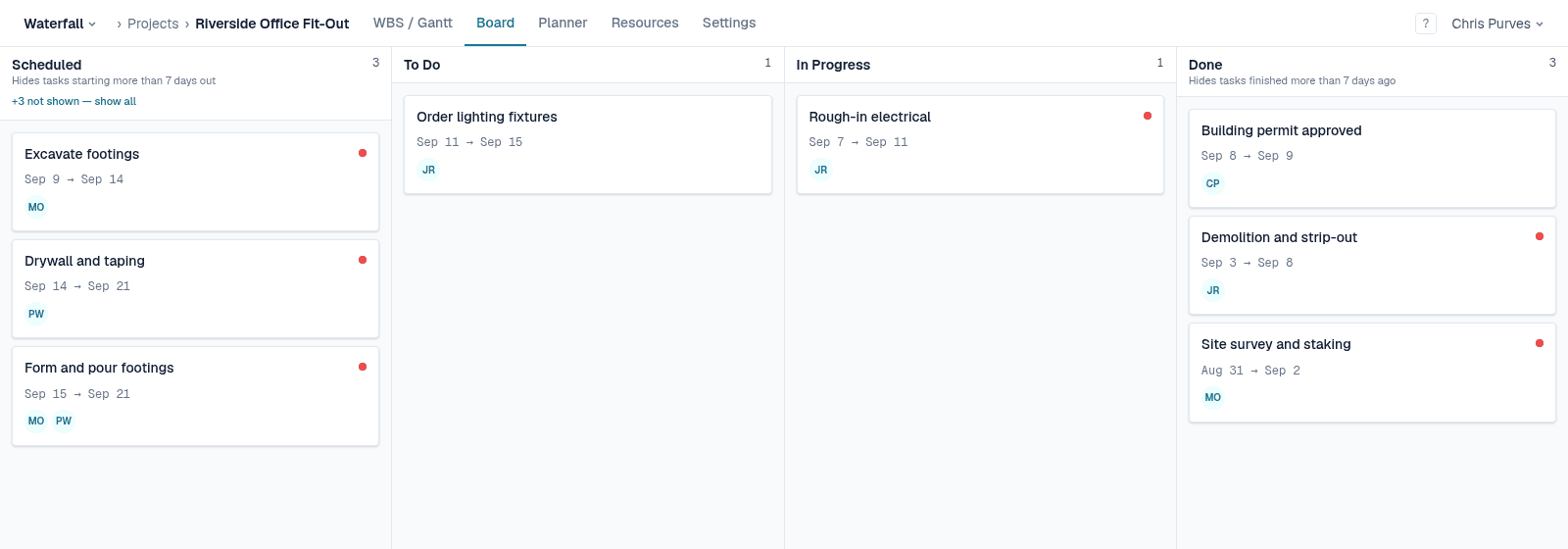
When a task becomes Done, its Finish-Start successors move from Scheduled to To Do on their own. That is the whole signal that work is ready to pick up — nobody has to go and re-status the next task by hand.
Before
After
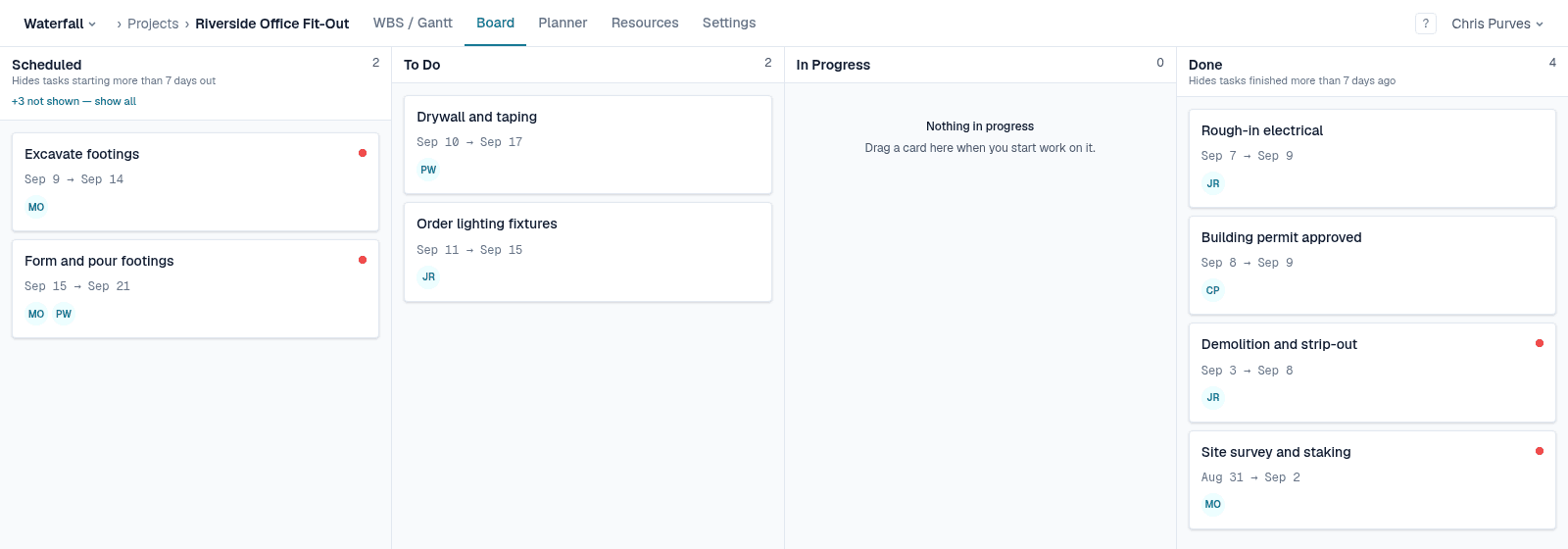
Three details decide whether it fires:
- Only Finish-Start links promote. A Start-Start, Finish-Finish or Start-Finish successor is left alone.
- Only successors sitting at exactly Scheduled are touched. One already in To Do, In Progress or Done keeps the status it has.
- Only direct successors. The task after that is promoted when its own predecessor finishes, not in one cascade.
One thing that surprises people: a task with two predecessors is readied by the first one to finish, not by the last. There is no wait-for-all. If that matters for a particular piece of work, watch the second predecessor rather than relying on the column.
Moving a task back from Done to In Progress reverses it: any Finish-Start successor sitting in To Do returns to Scheduled.
Kanban Board
The Board is the same tasks as the WBS, grouped by status instead of by hierarchy. Drag a card between columns to change its status; the same date side effects apply as in the table, and columns you cannot legally move a card to are dimmed while you drag.
Only leaf tasks appear.Phases are a structural grouping and have no status of their own, and subtasks live inside their parent’s card.
Two columns are windowed, so the board stays about what is happening now rather than becoming an archive: Scheduled shows work starting within the next 7 days, and Done shows work finished in the last 7 days. Each says so under its heading, and tells you how many rows it is holding back with a show all link.
Team Planner
The Planner shows the same work grouped by who is doing it, over the same timeline as the Gantt and at the same zoom. Like the Gantt, it opens centred on today (or on the nearer end of the project, when today falls outside it), and its Today button brings you back. One lane per resource, plus an Unassigned lane. Bars stack within a lane so none overlap, which is why lanes vary in height.
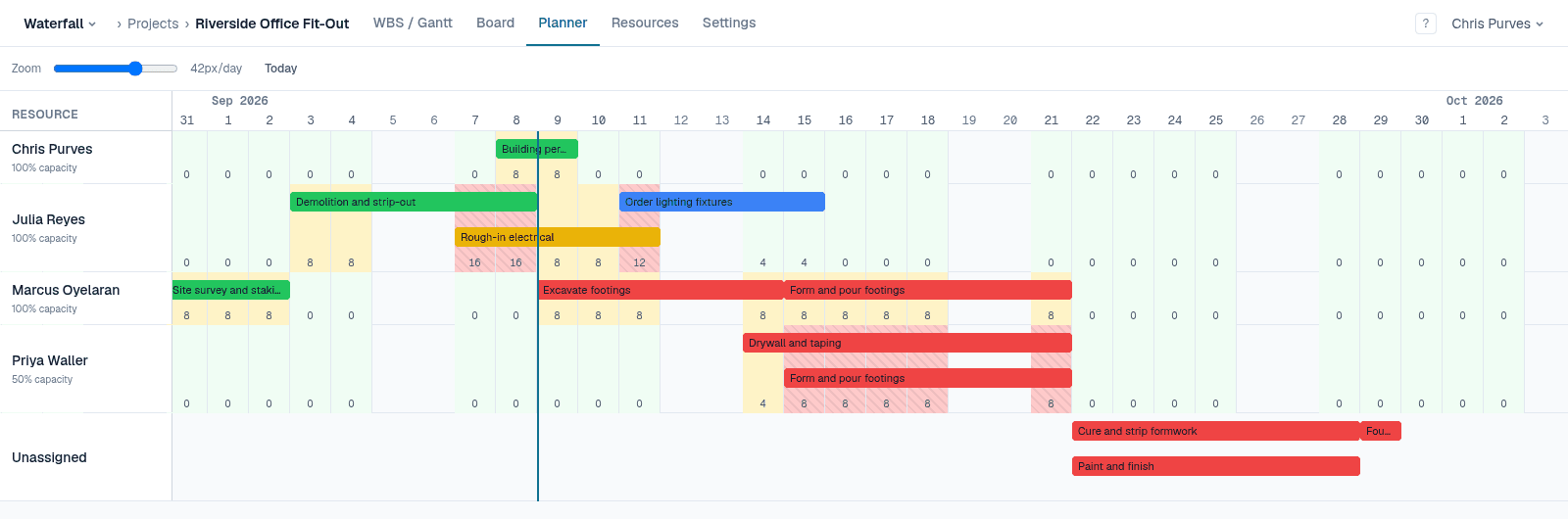
The numbers under each lane are allocated hours per day, measured against that resource’s capacity: green up to 80%, amber up to 100%, and red with hatching above it. Capacity comes from the resource’s Capacity on the Resources tab, so someone at 50% is over-committed at four hours a day, not eight.
Only leaf tasks are counted. A phase spans its children, so counting a phase assignment alongside theirs would charge the same hours twice. Where a phase assignment is being excluded, the lane says so.
Drag a bar sideways to move the work in time, or up and down to reassign it to someone else. Dropping a bar into another lane changes who does the work and nothing about when. Reassigning requires the PM role.
A sideways drag constrains the task to start no earlier than the date you drop on. That is the only thing the Planner writes — it has no equivalent of the Gantt’s Shift and Alt drags. There is one other difference worth knowing: where the Gantt quietly moves a too-early date forward, the Planner refuses the drop outright and tells you which task is in the way. Nothing is saved, so the bar returns to where it was.
Resources & Project Roles
Resources are people in your project's resource pool. Go to the Resources tab to add team members. You can auto-fill name and email from existing team members using the dropdown.
Each resource can be assigned to tasks in the Task Card → Resources section with an allocation percentage (default 100%, maximum 1000% for multi-role scenarios). Allocation affects calculated work hours and — for Work-based tasks — the computed duration.
Project roles
| Role | Permissions |
|---|---|
| PM | Full task edit, create at root level, assign resources, manage resource pool, edit project settings |
| USER | Edit tasks they are assigned to (or assigned to an ancestor phase); cannot create root-level tasks or manage resources |
The project creator is automatically given the PM role. Team Owners have project-administration rights but must add themselves to the resource pool before they can edit tasks.
Keyboard Shortcuts
Shortcuts are active when focus is in the WBS table (not inside a text input or the rich-text editor). Press ? in the app to open the shortcuts overlay.
WBS — Navigation
| ↑ / ↓ | Move selection |
| Shift+↑ / ↓ | Extend selection |
| → / ← | Expand / collapse a phase |
| Enter | Open the focused task |
| Click | Select task and open task card |
| Ctrl+Click | Toggle task in selection |
| Shift+Click | Range select |
| Esc | Clear selection (restores Tab to moving focus) |
WBS — Tasks
| Insert | Create task below selected |
| Tab | Indent selected task(s) |
| Shift+Tab | Outdent selected task(s) |
| Alt+↑ / ↓ | Move task up / down within its level |
| L | Link selected tasks (finish-to-start) |
| Esc | Leave Link Tasks mode |
| U | Unlink selected tasks |
| Delete | Delete selected task |
Gantt
| Tab | Move between bar handles |
| Space | Pick up / drop a bar |
| ← / → | Move one day while holding a bar |
| Esc | Cancel a bar you are holding |
| Drag | Move a bar — start no earlier than that date |
| Shift+Drag | Move a bar — must start on that date |
| Alt+Drag | Change the lag on the driving predecessor link |
Board
| Tab | Move between cards |
| Enter | Open the focused task |
| Space | Pick up / drop a card |
| ← / → | Choose a column while holding a card |
| Esc | Cancel a card you are holding |
Task Card
| Ctrl+Enter | Save description |
| Ctrl+Enter | Post comment |
| Esc | Re-dock floating card |
General
| ? | Show / hide the shortcuts dialog |
Project Settings
Go to the Settings tab (visible to PMs and Team Owners) to configure:
- Project name and start date — the start date is the scheduling floor for tasks with no predecessors and no committed start.
- Work days — which days of the week count as working days. Defaults to Monday–Friday. At least one day must be selected. Presets: Mon–Fri, Mon–Sat, Every day.
- Timezone— determines what "today" means for scheduling floors, the Gantt today line, and the Board's Scheduled column cutoff. Defaults to UTC. Choose your team's local timezone.
- Holidays — specific dates where no work happens, regardless of weekday. Load a standard calendar for your country (Canada, USA, UK, Australia, New Zealand, South Africa) or add custom dates. Holidays are shaded the same as non-work days in the Gantt.
- A task that works every day — for work that runs through a weekend or a holiday, such as a weekend cutover, set Calendarto “Every day” on that task's card. Its duration then counts every day, it can start on a Saturday, and its bar is marked “7d”. The rest of the project keeps its work days. A lag on a link into it counts every day too, since a lag counts on the successor's calendar.
Changing work days, start date, or timezone automatically triggers a full reschedule of the project.
Email Notifications
Waterfall sends email notifications for key events. Emails are queued and sent within a minute of the triggering action.
| Event | Recipients |
|---|---|
| Resource assigned to task | The assigned resource |
| Task status changed | Assignees + watchers |
| Comment posted | Assignees + watchers |
| @-mention in description or comment | Mentioned users |
| Task dates slip ≥ 1 day after reschedule | Assignees + watchers |
| Dependency created/updated/deleted | Successor assignees + watchers |
| Team invite | Invitee |
Watching a task— click the Watch button in the Task Card header to receive notifications for a task even if you're not assigned to it.
Notification preferences — go to Settings → Notifications to mute specific notification kinds, enable a daily or weekly digest instead of instant emails, or suppress notifications for your own actions.
Every email has an unsubscribe link in the footer. You can also reply directly to comment and mention emails — your reply is posted as a comment on the task.
Subtasks
A subtask is a checklist item that lives insidea task’s card. Subtasks never appear on the WBS, the Gantt, the Board or the Planner, and they are invisible to the scheduler — they have no dates and no duration, and they cannot take a dependency.
To add them, open a task card and undock it (the icon next to the close button). A card for a task with no children shows a Subtasks section; a card for a phase shows a Tasks section instead, which creates ordinary tasks that do appear everywhere.
Subtasks can carry a status, and it follows the same rules as any other task, but changing one never reschedules anything or promotes a successor. Use them for the small steps inside a piece of work that do not deserve their own bar.
Baselines
A baseline is a snapshot of every task’s start and end date at a moment in time — the plan as it was agreed, so you can see how far the current schedule has moved from it.
Capture one from the Baselinemenu in the WBS toolbar. Selecting a saved baseline draws it as a thin grey bar underneath each task’s current bar on the Gantt; the gap between the two is the drift. Choosing None hides it. Which baseline you have showing is yours alone — it does not change what anyone else sees.
Baselines are a record, so they are deliberately unaffected by whatever happens next. Renaming, rescheduling or even deleting a task leaves the snapshot intact; entries whose task no longer exists are simply not drawn. Capturing a baseline never changes the schedule.
Import & Export
Export from the WBS toolbar as CSV, TSV or XLSX. All three carry the same columns, so a file you export can be edited and imported back.
Import takes the same shape and runs in one of two modes: Replace, which clears the existing WBS first, or Append, which adds the rows to the end. Importing requires the PM role or team ownership.
How the columns work
- Level is what builds the hierarchy — 0 is a root row, and each row attaches to the nearest row above it one level shallower. The WBS column is generated for readability and ignored on the way in.
- You do not mark a row as a phase. A row is a phase if something below it sits one level deeper.
- Duration takes the same units as the app —
5d,1w,4h. - Resources read as
Julia Reyes [50%], Marcus Oyelaran [100%]and are matched by name against the project’s existing pool — importing does not create people. - Predecessors use MS Project syntax —
1.2FS+2d,1.3SS— and refer to the WBS numbers within the same file. - Constraint takes a code (
SNET,FNLT,MSO…) or the full name, with the date in Constraint Date. An empty cell means As Soon As Possible. Deadline is a date on its own. All three are exported and imported, so a plan keeps its constraints through a round trip. Phase rows carry none, since their dates come from their children.
Validation is all-or-nothing. Every problem is reported at once with its row and column, and nothing is written unless the whole file is clean — so a failed import cannot leave a project half-changed. Importing also suppresses the usual rescheduling emails, in either mode, since otherwise it would notify every assignee of every task about churn they were expecting.
From Microsoft Project
In Microsoft Project, use File → Save As and choose XML Format (*.xml), then import that file the same way. .mppfiles can’t be read directly.
- The outline, durations, milestones, links with their lags, constraints, deadlines, notes and progress come across. A task at 100% is imported as Done and one that has started as In Progress, keeping its actual dates.
- Resources are matched against the project’s pool by email, then by name, and the rest are added to it with their assignments.
- Replacealso takes the file’s working days and start date, and adds its holidays. Appendkeeps the project’s calendar.
- What Waterfall models differently is converted to the nearest equivalent and listed before you import — manually scheduled and leveled tasks are pinned with Start No Earlier Than, percentage lags become days, elapsed lags into a task that does not work every day become working days, and working-day lags into a task that does become calendar days. The list also names any task that will land on different dates than it had in Microsoft Project.
AI Assistants (MCP)
Waterfall is an MCP server, so Claude, ChatGPT, Cursor and other assistants that support the Model Context Protocol can work with your projects directly: ask what is on the critical path, what slipped this week, or have it add and link tasks for you.
Connecting
- In your assistant, add a custom connector (or MCP server) with the URL
https://waterfallpm.app/api/mcp. In Claude Code:claude mcp add --transport http waterfall https://waterfallpm.app/api/mcp. - It opens Waterfall in your browser. Sign in if asked, check which app is asking, and choose Allow access.
What a connected assistant can do
- See your projects, schedules, tasks, resources and comments.
- Create and edit tasks, change status, link tasks and post comments.
It acts as you, and only as you. Every request goes through the same permission checks as the app, so an assistant can change exactly what your project role lets you change and nothing more. Its edits reschedule the plan and send the usual notifications, just as if you had made them.
Disconnecting. Every app you have connected is listed under Connected apps in the account menu. Disconnecting one takes effect on its very next request.
FAQ & Troubleshooting
I dragged a bar and it landed on a different day.
You dropped it earlier than the schedule allows. A plain drag sets a floor, so it cannot place a task before its predecessors finish, before the project starts, or in the past. On the Gantt the date is moved forward to the earliest one that works, and that is what gets saved. On the Team Planner the same drop is refused instead, with a message naming the task in the way, and so is a Start date typed too early in the table or the task card. Drop it later than that point and it lands exactly where you put it. A Shift+drag behaves differently: the date is stored exactly as you set it, and if the plan cannot meet it the bar stays put and the row is flagged instead.
How do I stop a task from moving?
Drag its bar to where you want it. That sets a Start No Earlier Than constraint, and a 📌 appears beside the task name. It only stops the task moving EARLIER — if a predecessor slips, the task still moves out with it, which is what stops a constraint producing a plan that cannot happen. Typing a Start date in the table or the task card does the same as a plain drag. Shift+drag sets Must Start On instead, and the task card's Constraint dropdown offers all eight. To remove one, set that dropdown back to As Soon As Possible.
Why can't I drag this bar?
Phases and milestones have no drag handles — a phase's dates come from its children, and a milestone is a single date. If the handles are missing on an ordinary task, you do not have edit rights on it: you need the PM role, or to be assigned to that task or a phase above it.
A task went to To Do but its other predecessor isn't finished.
That is expected. A successor is readied by the FIRST predecessor to finish, not the last — there is no wait-for-all. The status is a prompt, not a guarantee that everything upstream is clear, so where it matters, check the other predecessor before starting.
Why did my task's end date change when I didn't touch it?
The scheduler runs automatically after any change that affects dates — editing a predecessor, adding a resource, changing a dependency, or changing project work days or timezone. This keeps all tasks consistent. Check the Gantt to see which dependency chain shifted.
Why can't I edit a phase's dates or duration?
Phase dates are always derived from their children: start = earliest child start, end = latest child end. To change a phase's dates, change its tasks instead. If all tasks are in a later date range, the phase will follow.
What does 'Critical' mean on a task?
A critical task has zero scheduling float — any delay to it moves the project end date. The scheduling engine computes the critical path using the Critical Path Method (CPM). Critical tasks show as red bars in the Gantt and carry a small red dot beside the name in the table. Work that is already In Progress or Done keeps its own status colour instead of turning red.
My task's start date is stuck in the past. How do I fix it?
In Progress and Done tasks keep the start date they were given — the scheduler treats it as a record of when the work began, so predecessors no longer move it. To correct it, drag the bar on the Gantt or type a new Start date in the table. A started task cannot be moved past today; if the work has not really begun, move it back to To Do or Scheduled and let the scheduler reposition it.
I added a task but can't see it in the Gantt.
Check if the parent phase is collapsed in the WBS. Collapsing a phase hides its children from both panels. Click the expand arrow on the phase row to reveal them.
Why are some calendar days shaded in the Gantt?
Shaded columns are non-work days (based on your project's work days setting) or holidays. Task duration is measured in work days only, so a 5-day task spanning a weekend takes 7 calendar days.
A team member registered but I don't see them linked to their resource.
Resources are automatically linked to a user account when the user registers with a matching email address. If they registered before being added as a resource, they won't auto-link — have them check they registered with the same email, or remove and re-add the resource after they register.
I'm a team Owner but I can't edit task fields. Why?
Team Owner status gives you project-administration rights (manage resources, edit project settings) but not task-edit rights. To edit tasks, add yourself to the project's resource pool on the Resources tab first.
Still stuck? Send us feedback or report an issue.